
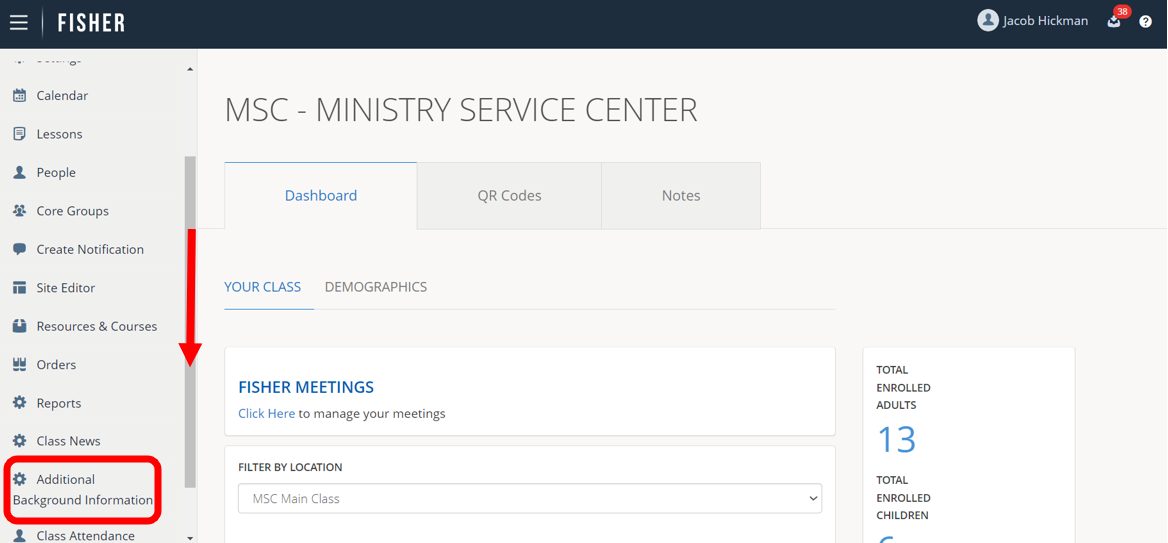
1.) Scroll down and click on ABI.
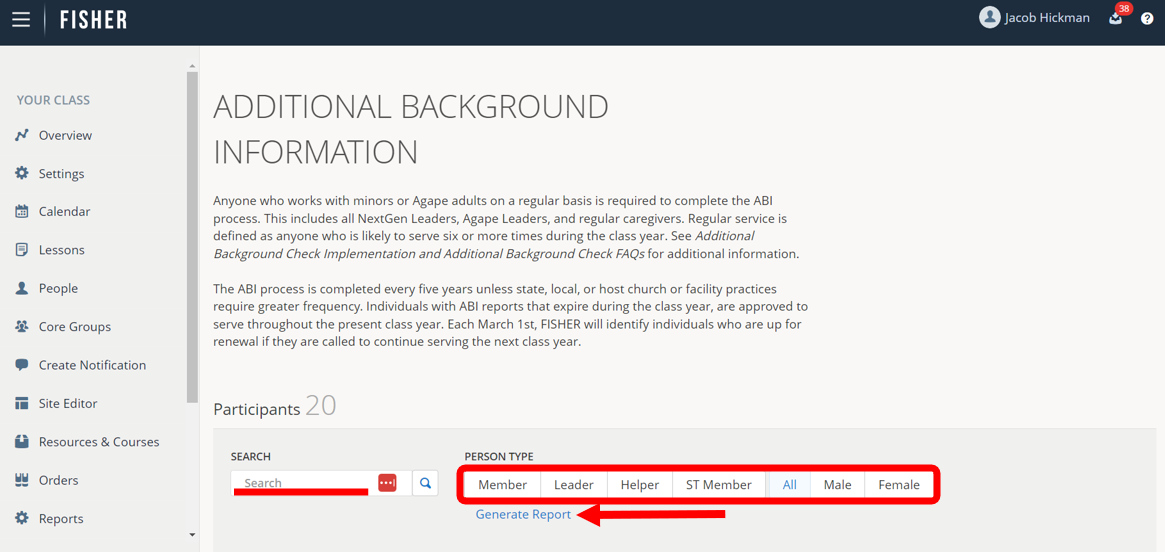
2.) Use the Search field and Person Type filters to find the person you are seeking. Click ABI Report to download a summary file for all class participants and leaders.
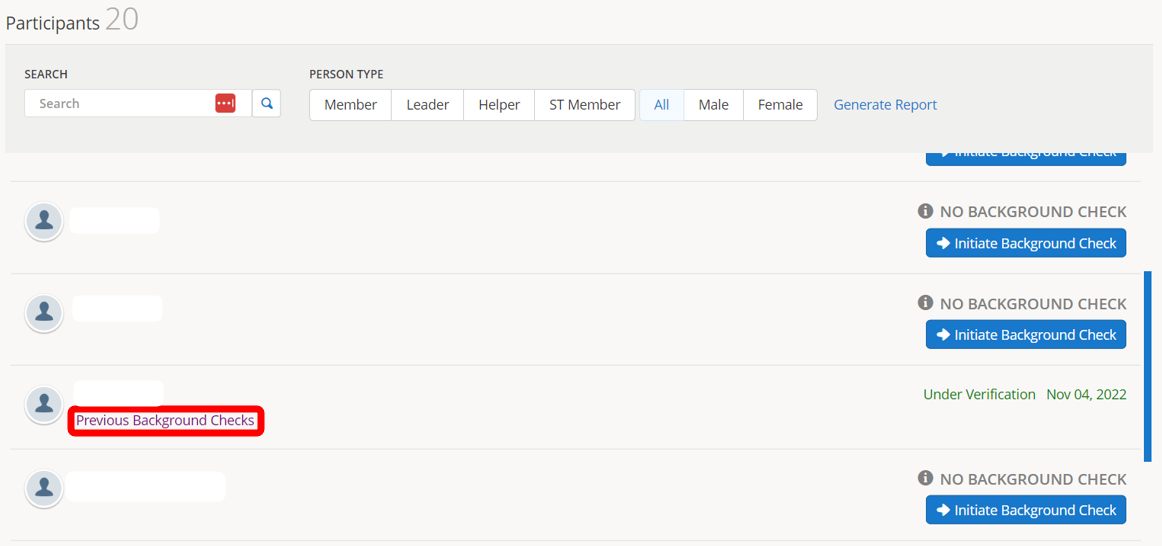
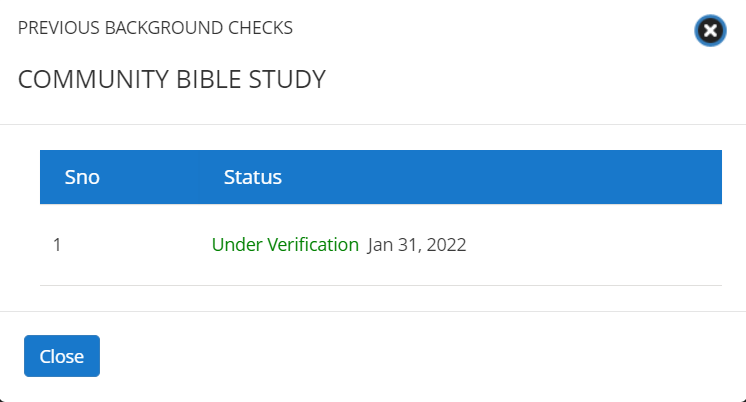
3.) Click on Previous Background Checks to see a list of previous background checks for an individual.
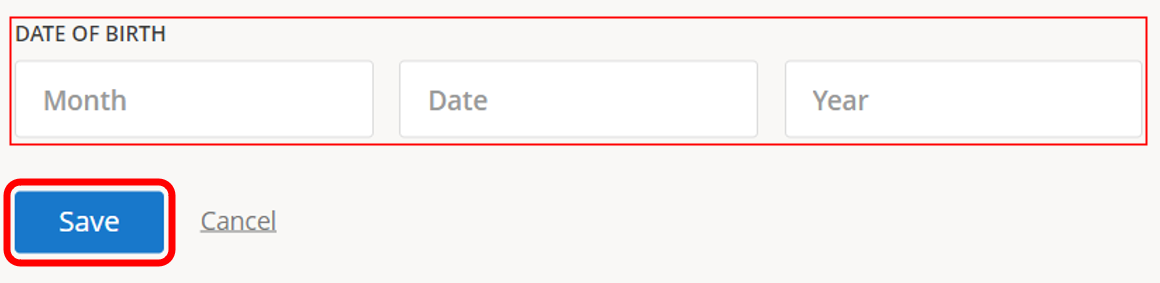
4.) Click on Missing Information to see and update a profile with missing information required to initiate a background check. Complete the missing information, then click Save.
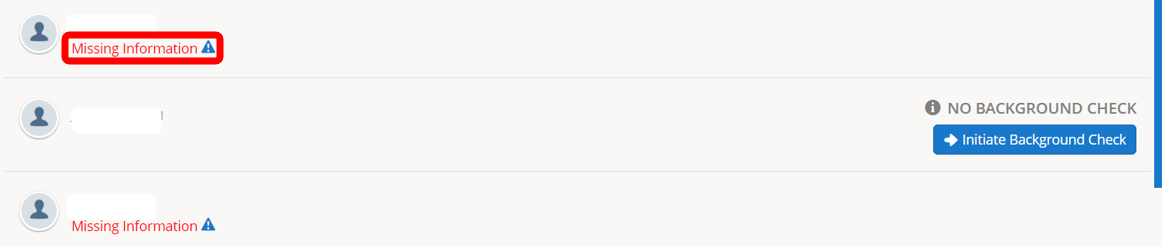
5.) Click on Initiate Background Check to start the process for completing a background check. The participant/leader will receive an email to complete the information for the background check. Fisher will show which participants have had a background check initiated.

6.) Fisher will show when a current background check has been Approved and Completed or click Contact MSC.
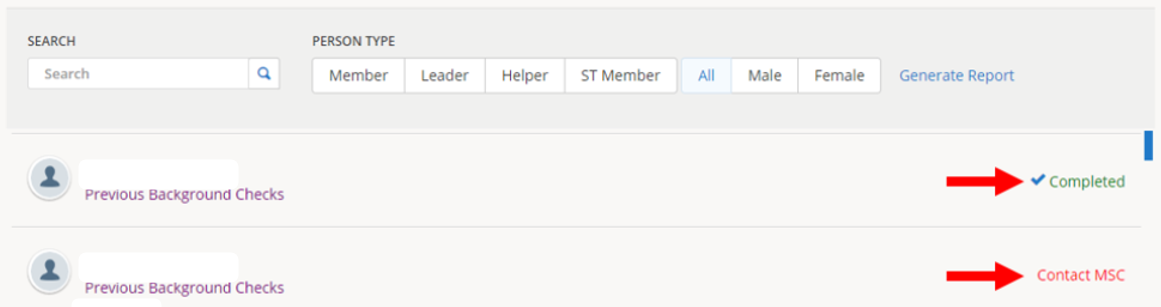
7.) CONTACT MSC – Once you click on Contact MSC, please complete the form and hit Send.