
FISHER Resources & Courses has been upgraded. Everything CBS publishes for your class, lesson files, handbooks, teaching helps, training videos, course files, etc., now lives in one place, and new AI-powered tools help you find what you need faster.
The biggest change is how you find things. There are now three ways, and they are the three tabs at the top of the page: Browse, Search and Agent Chat.
This article takes them one at a time.
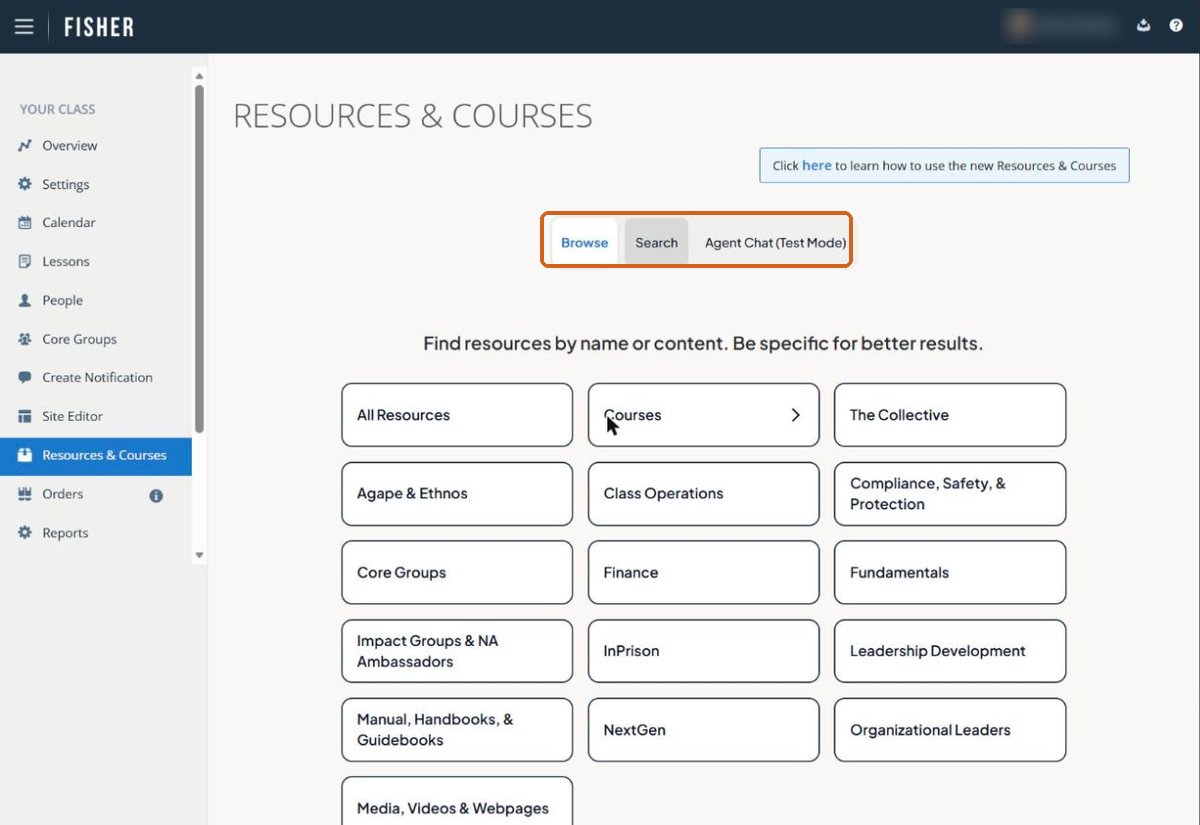
Browse: when you know roughly where it lives
Each tile is a category, for example: All Resources, Courses, The Collective, Leadership Development, Finance, NextGen, Compliance, and so on.
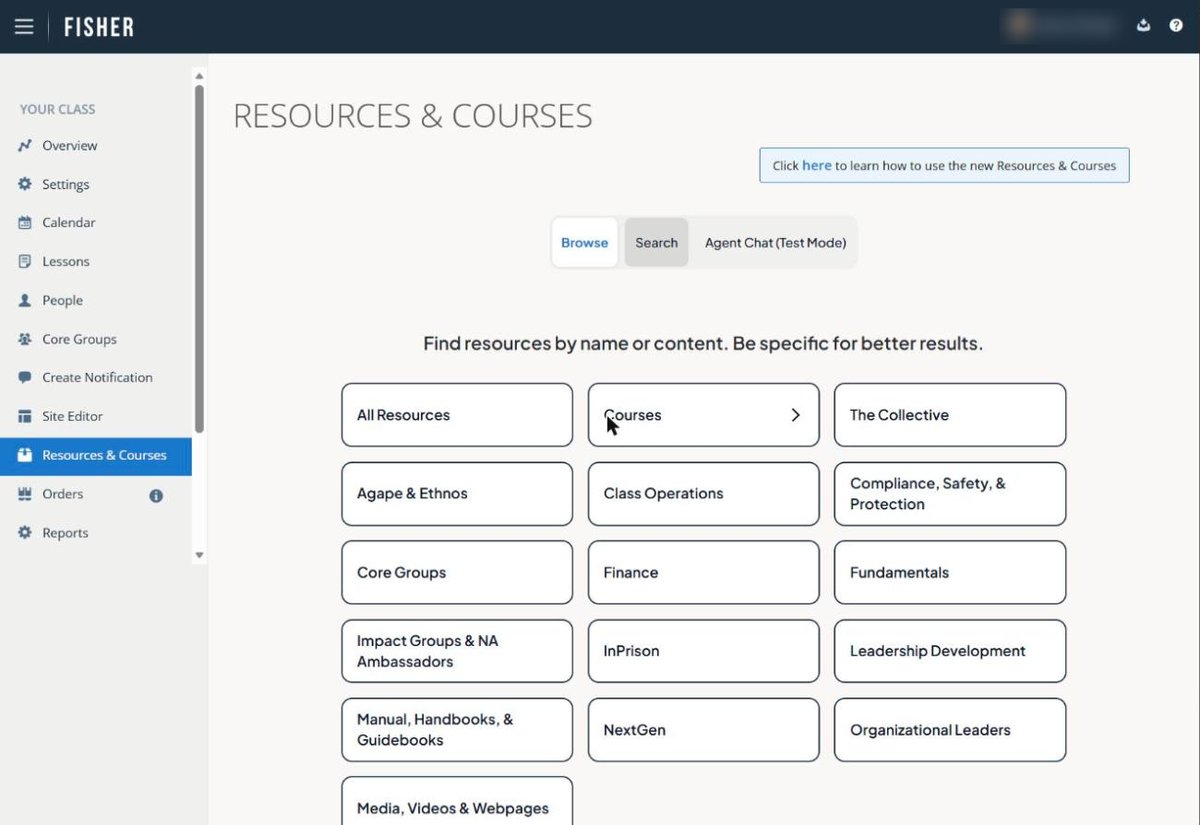
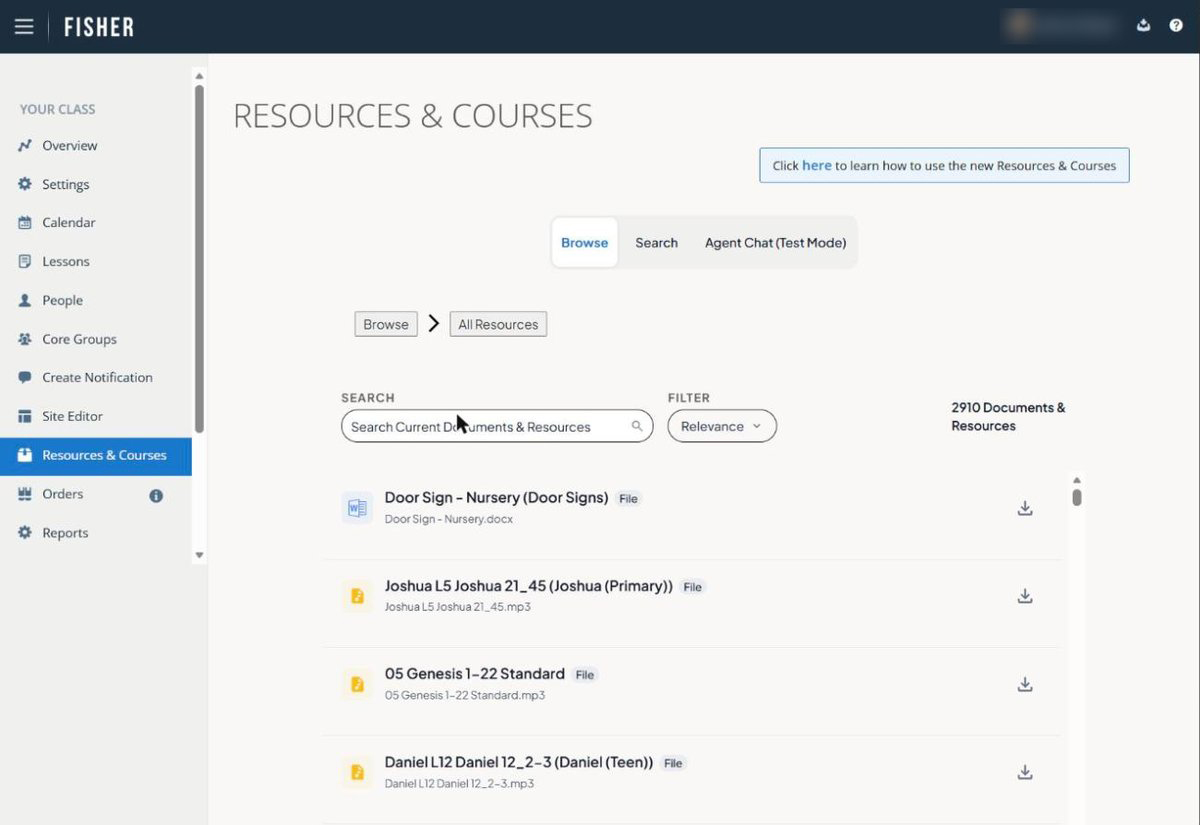
All Resources shows every resource and course file available to you in FISHER. Selecting any other tile narrows that list to just the selected category.
Finding Course files
The Courses tile behaves a little differently from the others. The arrow on its right-hand side tells you it opens into more category tiles rather than going straight to a list of files.
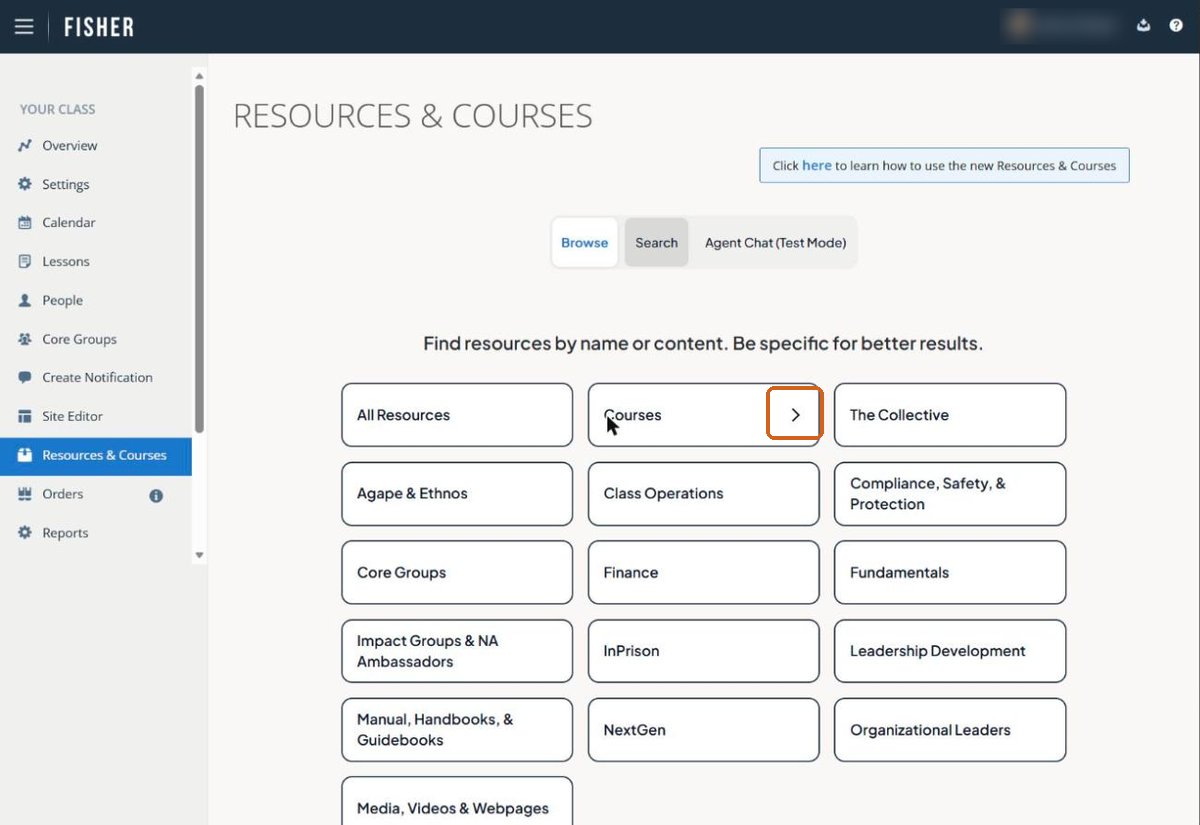
Courses starts by sorting into course types, such as Standard, Junior, Primary, Teen, Condensed, Ethnos, Global and Agape. Pick the type your class uses, and that choice narrows everything that follows.
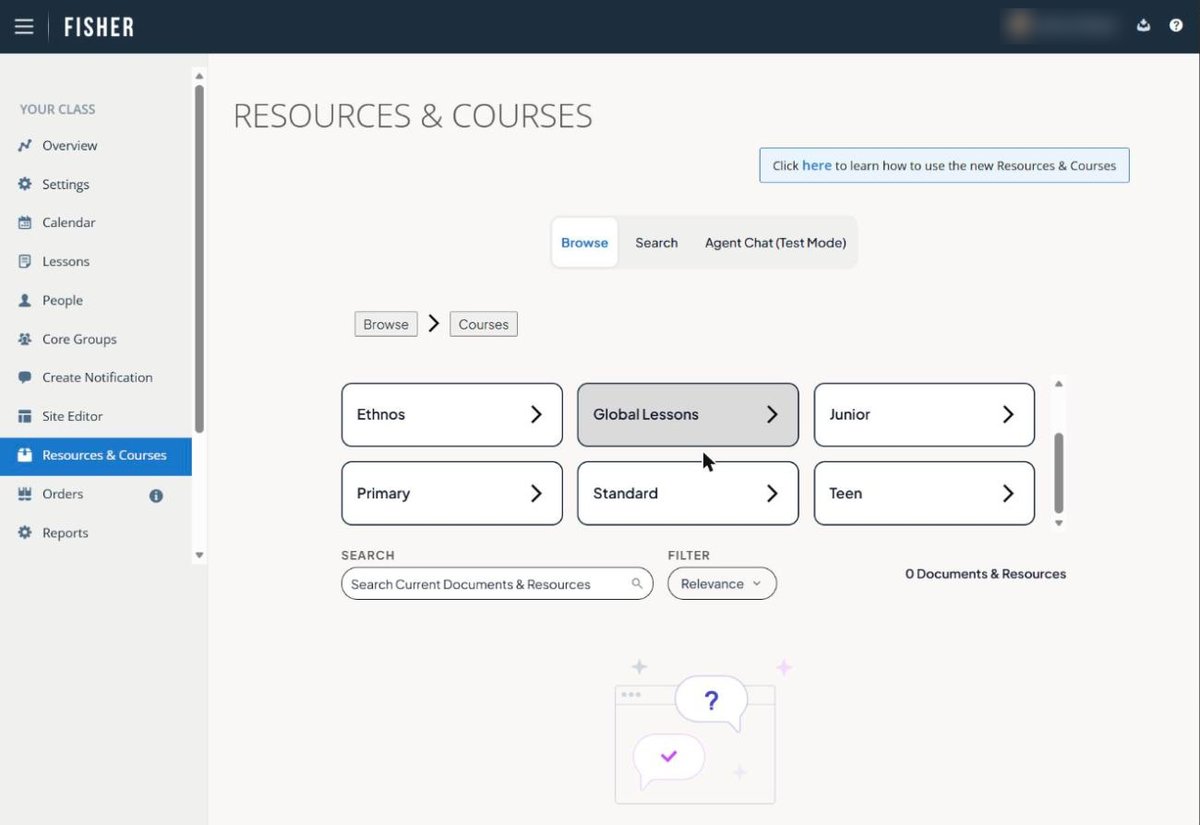
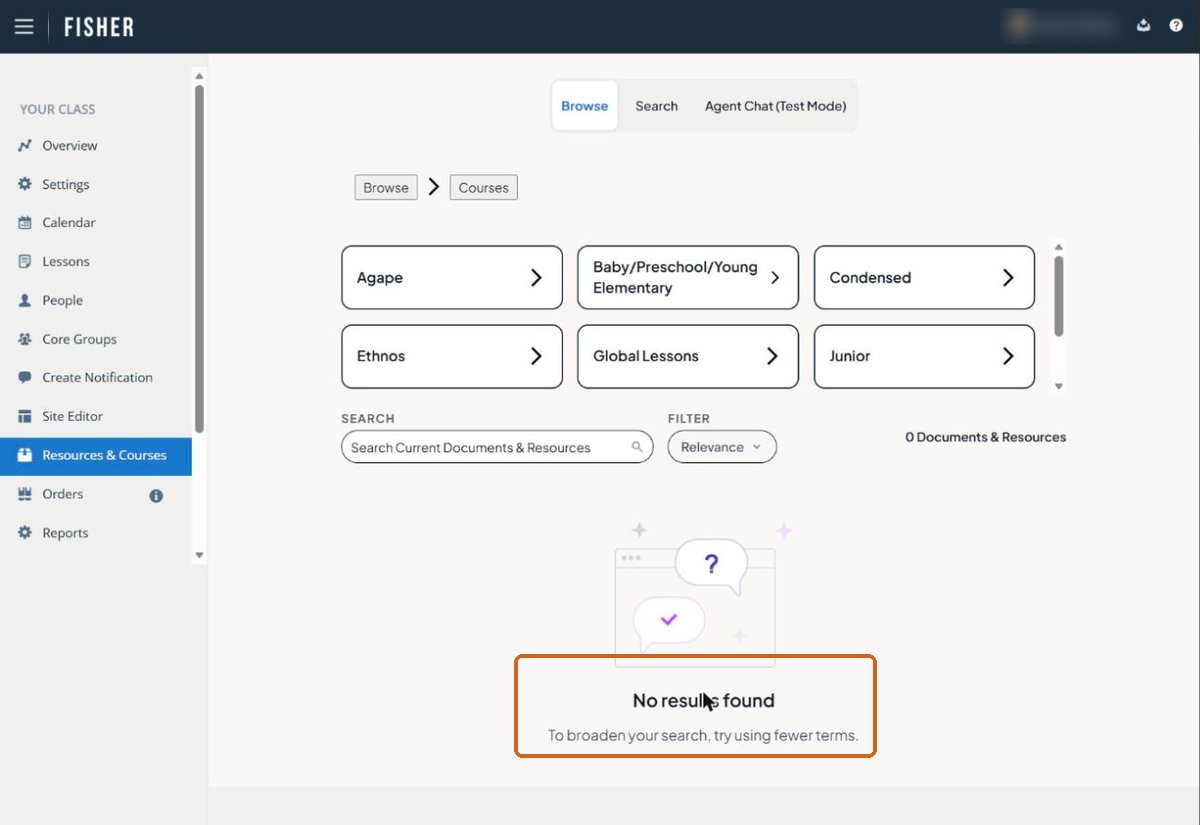
You may see “No results found” at this point. Don’t worry. Files appear once you have picked a course type — there are no loose files at this level.
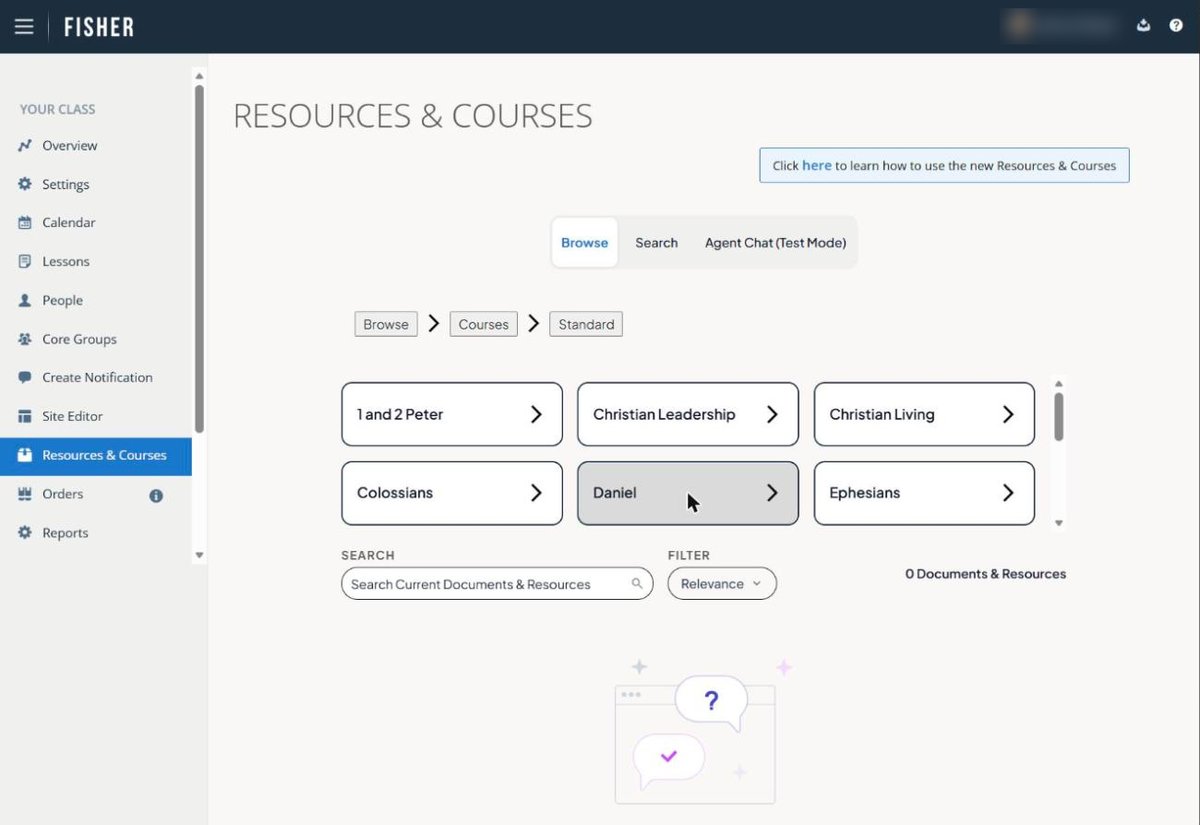
Next, select your course. Because you have already chosen the course type, the exact files you are after are easier to spot.
Inside your course, files are grouped into available categories, for example: audio lessons, large print, lesson files, maps and charts, memory verse pages and slides, TD/ATD advanced sets, and teaching helps.
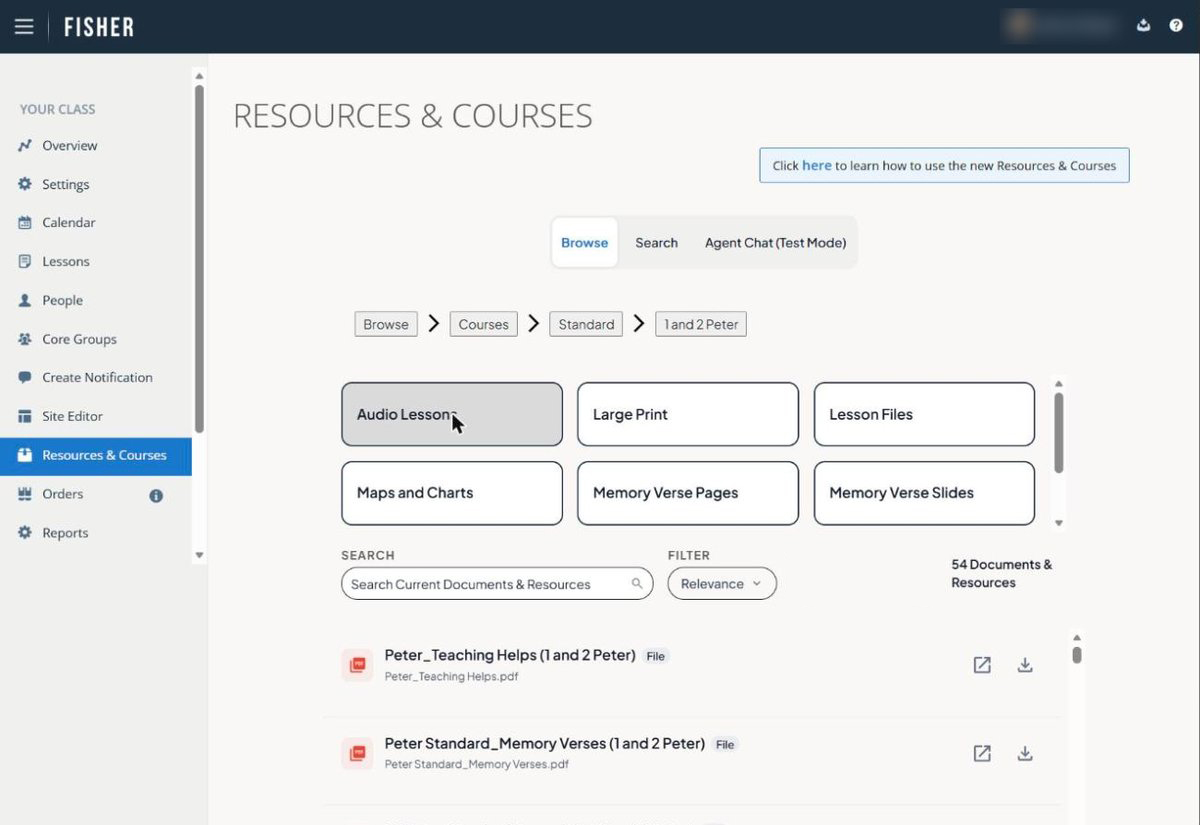
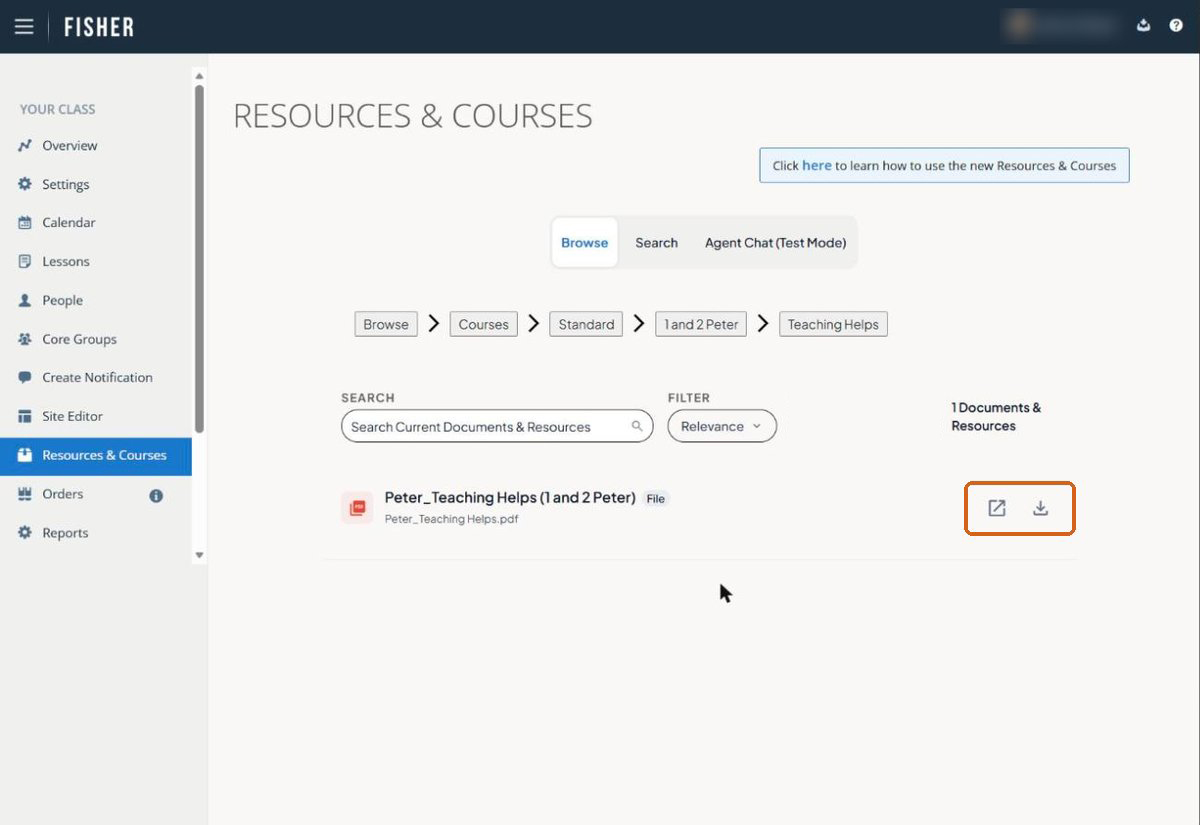
There is your file. Two icons sit at the right of the row. Currently, PDF files can be previewed or downloaded; other file types offer a download only, and web links open in a new tab.
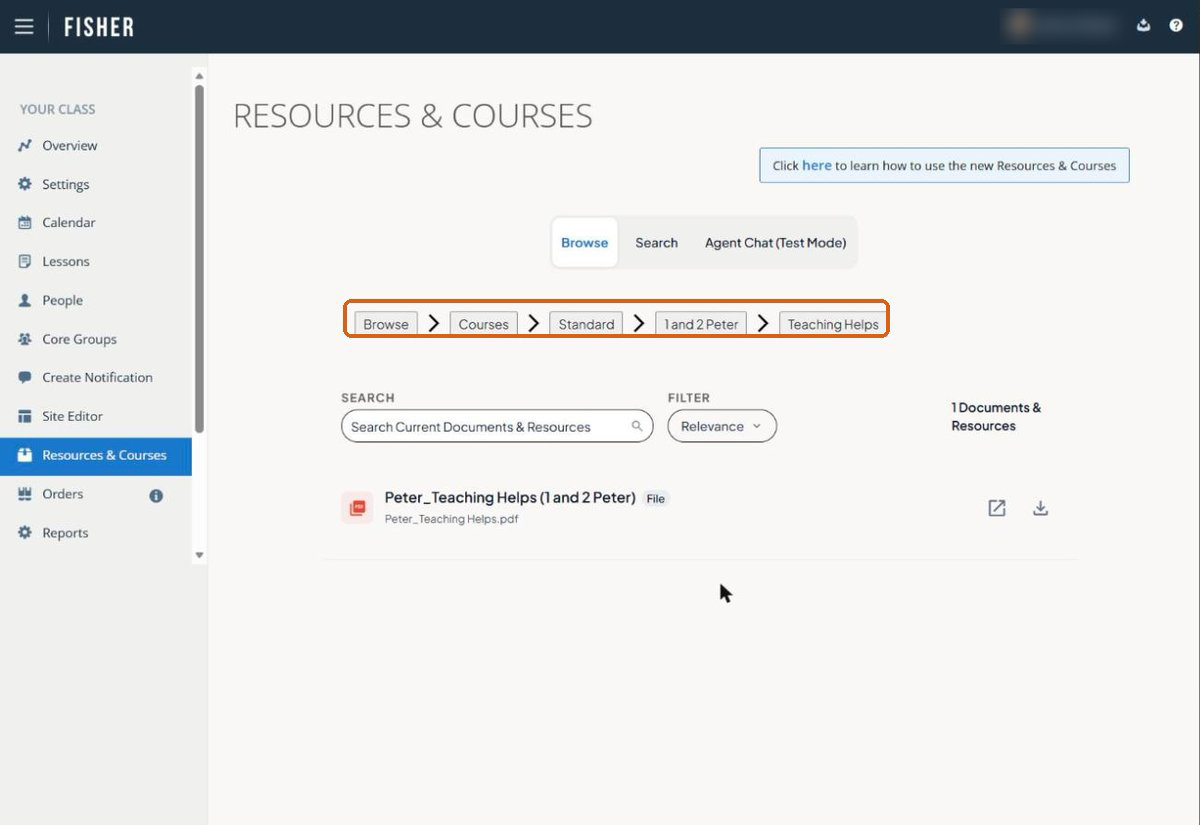
The path you took was: Courses → course type → course→ file type. The trail across the top is your way back — click any step to jump straight there.
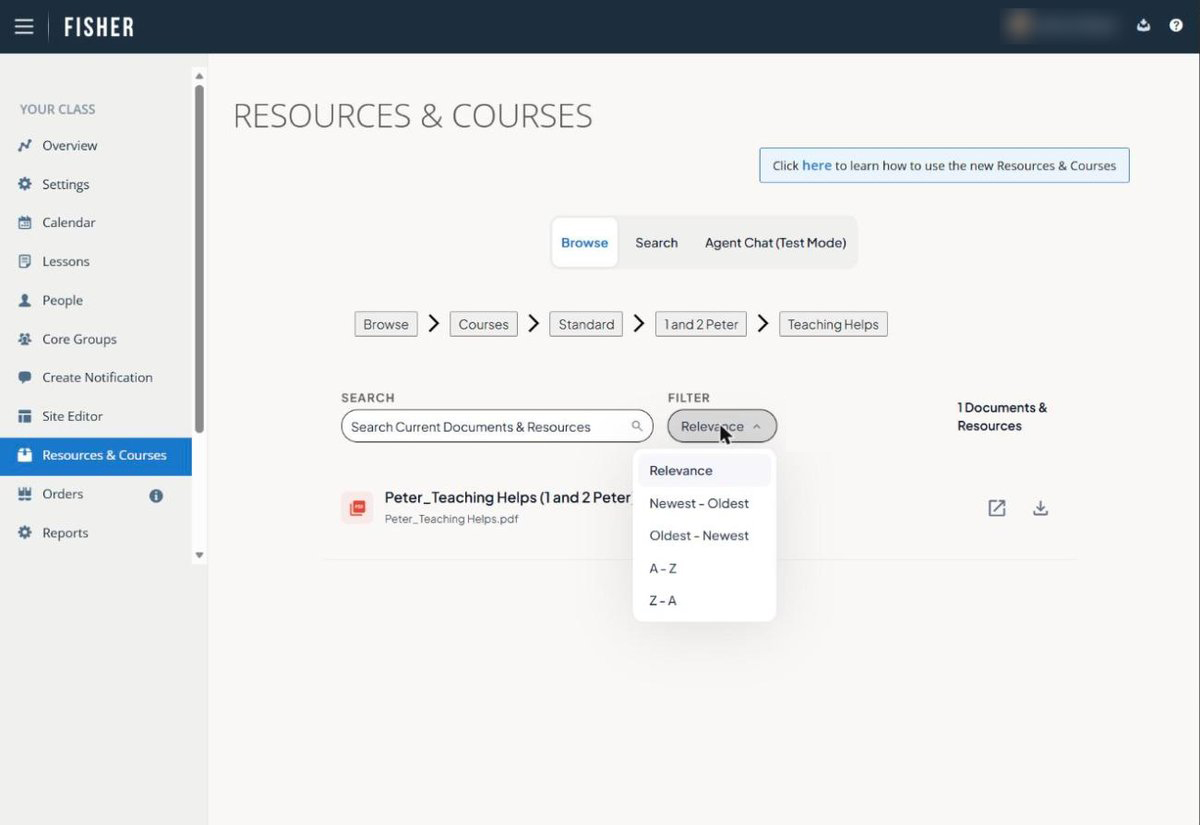
Every folder also gives you a box to narrow the list by name, and a sort menu with Relevance, Newest, Oldest, A–Z and Z–A.
Search: when you know what it is about
Search is for when you do not know where something lives — you just know what you need. It is not only matching titles, so type what you are after in plain words.
You will get exact title matches first, then everything related to the idea — each one scored, with a short note explaining why it turned up. That is often how you find the document you did not know existed.
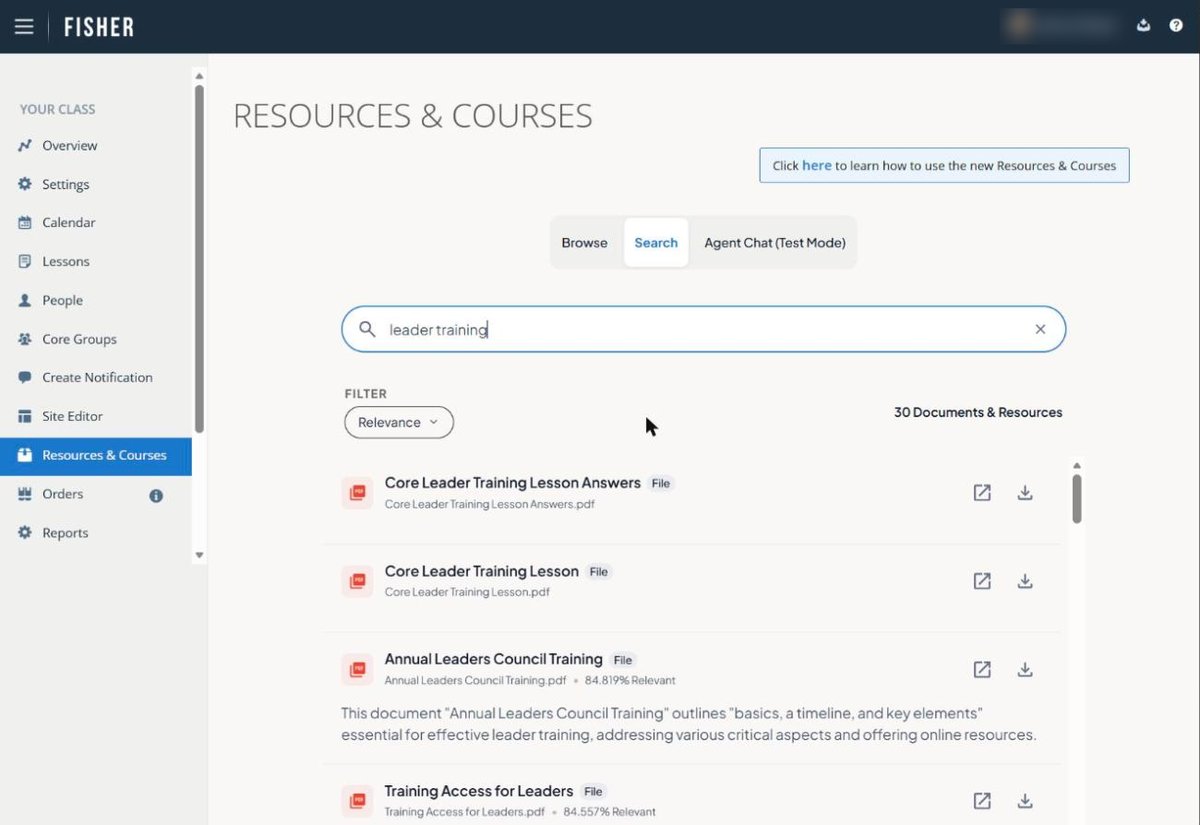
Tip: full phrases beat single words here. “Core group facilitation tips” will serve you better than “tips”.
Agent Chat: when you would rather just ask
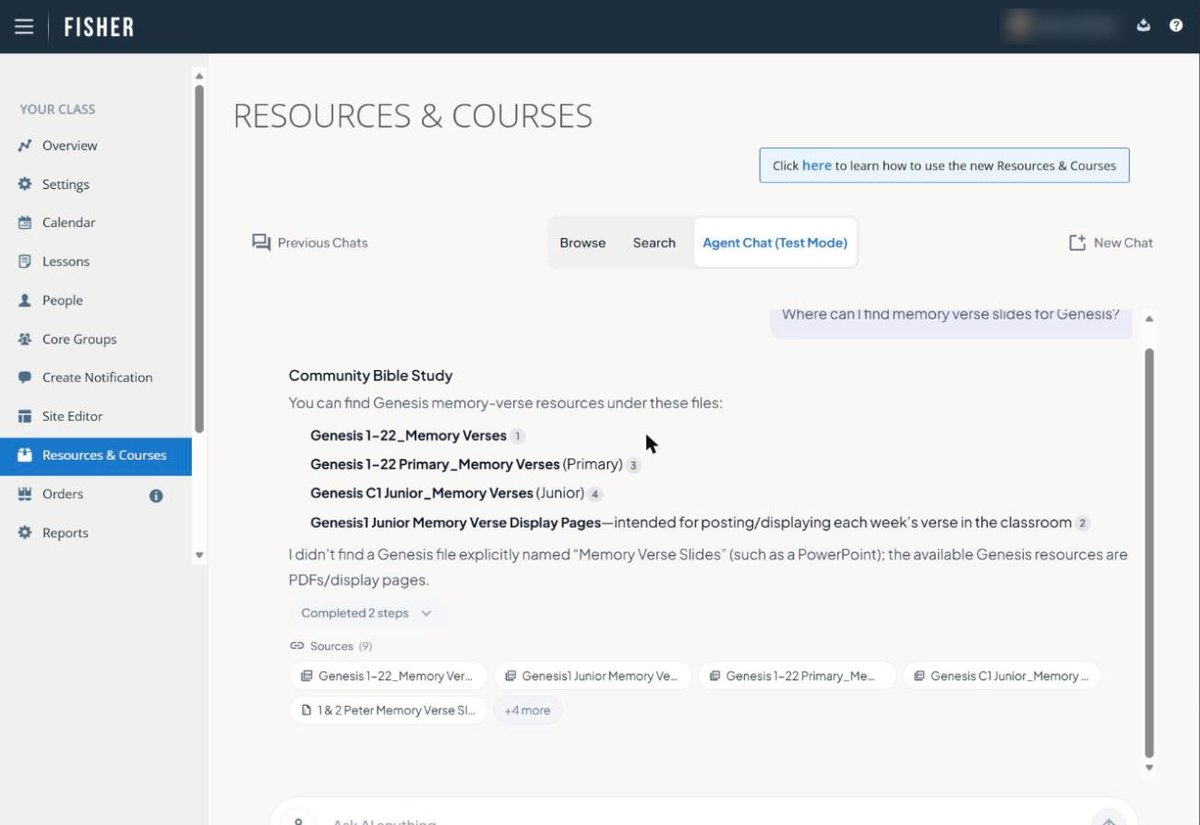
Agent Chat is still in testing, so treat it as a helpful assistant rather than the last word — but it is useful already. Instead of hunting for a file, ask a
question the way you would ask a colleague.
It reads across the library and answers you directly, grouped by topic, and points you to the actual documents behind every part of the answer. The sources at the bottom take you straight to the real file, and you can expand the steps to see exactly what it looked at.
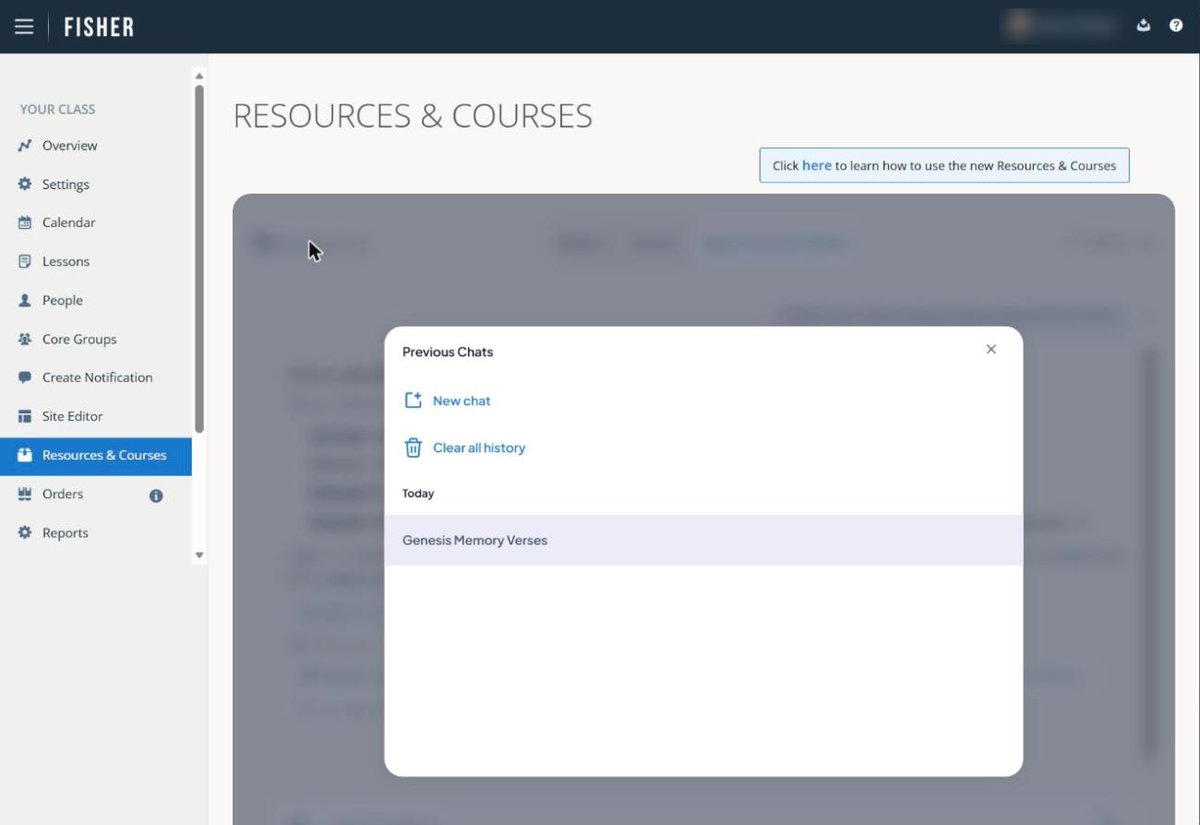
Your conversations are saved, so you can pick one back up later — or start fresh whenever you like.
Which one should I use?
- Browse when you know where it lives.
- Search when you know what it is about.
- Agent Chat when you would rather just ask.
Everything your class needs is in there. The fastest way to learn it is to
click around.
If you need a hand, submit a ticket — we are glad to help.